> ## Documentation Index
> Fetch the complete documentation index at: https://chainpatrol-knowledge-update-blockaid-and-hypernative-partn.mintlify.site/llms.txt
> Use this file to discover all available pages before exploring further.
# Discord Bot
> A Discord bot that can be used submit scam reports to ChainPatrol
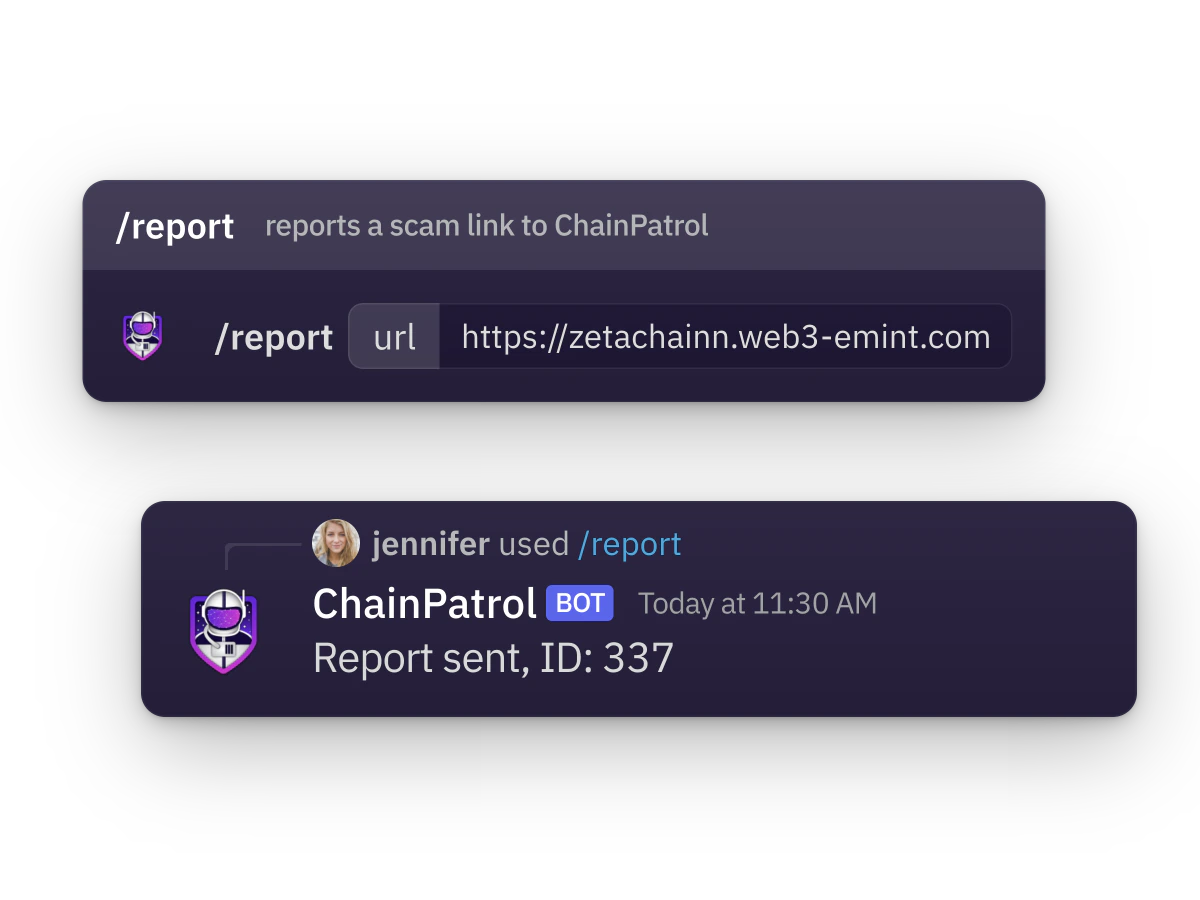 If you have a **Discord server**, you can use the [ChainPatrol Discord bot](https://chainpatrol.com/bot)
to let your server members submit scam reports to **ChainPatrol**. The bot will generate new
reports that get sent to your admin dashboard for review.
## Setup
If you have a dedicated `scam-reports` channel, we recommend pinning a message
in this channel and directing your server members to use the bot there for
easy reporting
### Install the bot
To add the bot to your server, you need to be an admin of the server. Then, you
can use the following link to add the bot:
[🚀 Add ChainPatrol to your server](https://chainpatrol.com/bot/install)
Next, you need to configure the bot to send reports to your admin dashboard on ChainPatrol. Right now,
this is can be done by reaching out to us [via email](mailto:support@chainpatrol.io?subject=%5BDiscord%20Bot%5D%20Setup%20integration%20with%20ChainPatrol\&body=Hi,%20I%20would%20like%20to%20link%20the%20Discord%20bot%20to%20my%20ChainPatrol%20account%20as%20described%20here:%20https://chainpatrol.io/docs/general/discord-bot.%0A%0AThanks!)
and letting us know that you want to add the bot to your server. We will create an organization
for you on ChainPatrol and you can then use the `/setup connect` slash command to link your Discord server
to your organization on ChainPatrol.
To check that the bot is working, you can use the `/setup status` command to see if the bot is
connected to your ChainPatrol organization.
## Features
### Scam Reports
The bot allows server members to submit scam reports directly to ChainPatrol.
#### Usage
Once the bot is added to your server, you can use the following commands:
* `/report ` - Submit a scam report for the given URL
* `/check ` - Check if the given URL is a scam
#### Example
Here is an example of how to use the bot to submit a scam report:
If you have a **Discord server**, you can use the [ChainPatrol Discord bot](https://chainpatrol.com/bot)
to let your server members submit scam reports to **ChainPatrol**. The bot will generate new
reports that get sent to your admin dashboard for review.
## Setup
If you have a dedicated `scam-reports` channel, we recommend pinning a message
in this channel and directing your server members to use the bot there for
easy reporting
### Install the bot
To add the bot to your server, you need to be an admin of the server. Then, you
can use the following link to add the bot:
[🚀 Add ChainPatrol to your server](https://chainpatrol.com/bot/install)
Next, you need to configure the bot to send reports to your admin dashboard on ChainPatrol. Right now,
this is can be done by reaching out to us [via email](mailto:support@chainpatrol.io?subject=%5BDiscord%20Bot%5D%20Setup%20integration%20with%20ChainPatrol\&body=Hi,%20I%20would%20like%20to%20link%20the%20Discord%20bot%20to%20my%20ChainPatrol%20account%20as%20described%20here:%20https://chainpatrol.io/docs/general/discord-bot.%0A%0AThanks!)
and letting us know that you want to add the bot to your server. We will create an organization
for you on ChainPatrol and you can then use the `/setup connect` slash command to link your Discord server
to your organization on ChainPatrol.
To check that the bot is working, you can use the `/setup status` command to see if the bot is
connected to your ChainPatrol organization.
## Features
### Scam Reports
The bot allows server members to submit scam reports directly to ChainPatrol.
#### Usage
Once the bot is added to your server, you can use the following commands:
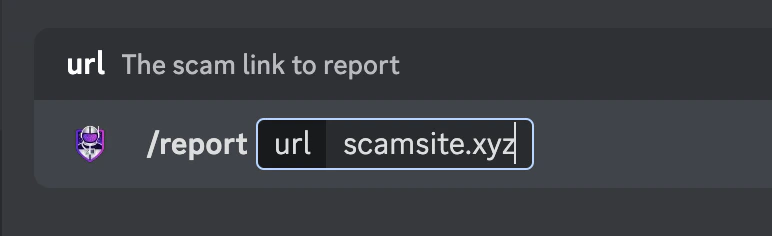
* `/report ` - Submit a scam report for the given URL
* `/check ` - Check if the given URL is a scam
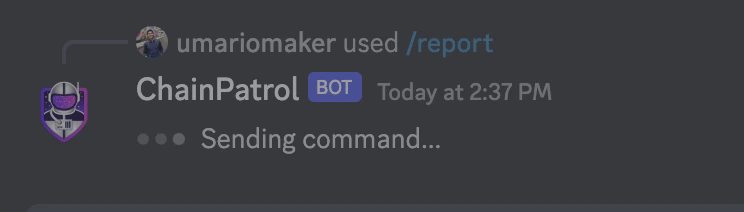
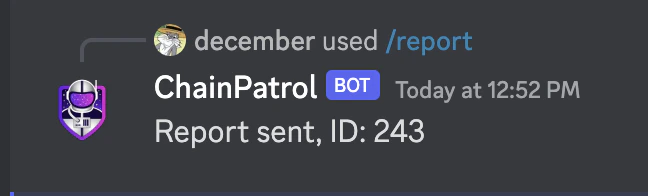
#### Example
Here is an example of how to use the bot to submit a scam report:
 ### Reports Feed
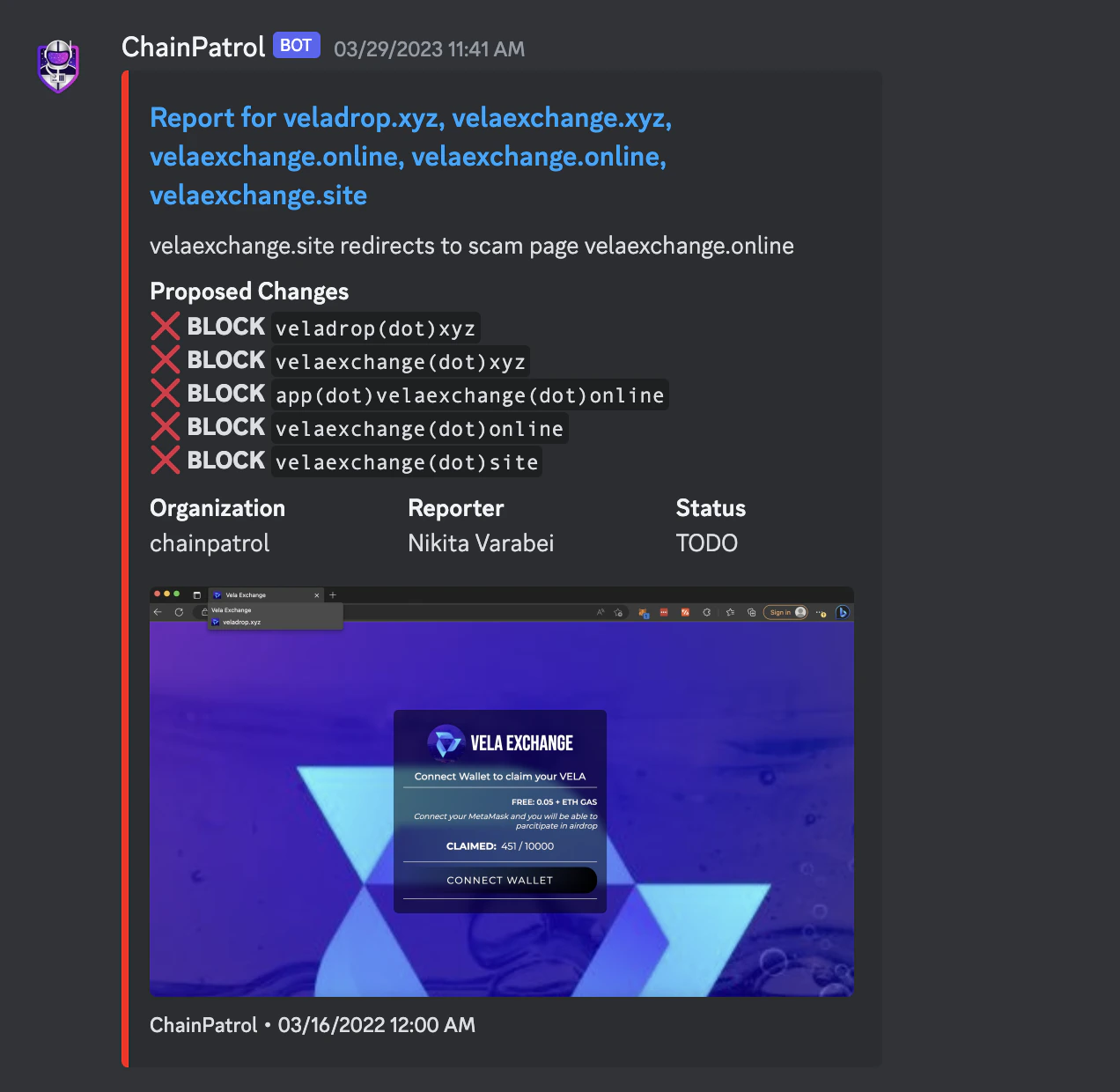
You can create a feed channel of all reports to your organization. This feature allows you to see all scam reports submitted through the bot in a dedicated channel.
#### Setup
1. Create a new channel on your Discord server and name it something like `chainpatrol-reports`
2. Use the following command to link the channel to your ChainPatrol organization:
```
/setup feed
```
3. Follow the instructions in the bot's response to link the channel to your ChainPatrol organization
### Reports Feed
You can create a feed channel of all reports to your organization. This feature allows you to see all scam reports submitted through the bot in a dedicated channel.
#### Setup
1. Create a new channel on your Discord server and name it something like `chainpatrol-reports`
2. Use the following command to link the channel to your ChainPatrol organization:
```
/setup feed
```
3. Follow the instructions in the bot's response to link the channel to your ChainPatrol organization
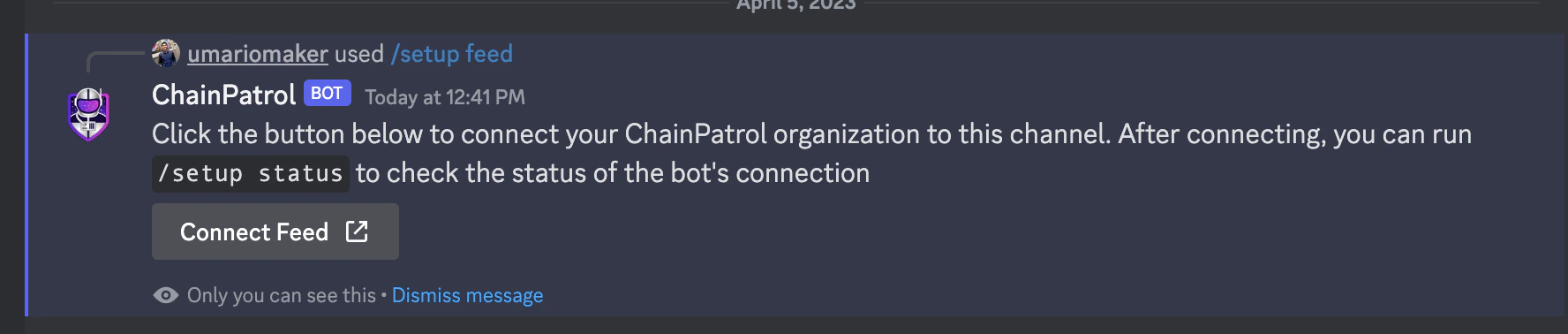 You can check that the feed is connected correctly by running the `/setup status` command. If the
feed is connected correctly, you should see the channel name in the bot's response.
You can check that the feed is connected correctly by running the `/setup status` command. If the
feed is connected correctly, you should see the channel name in the bot's response.
 As a final test, you can try submitting a test scam report using the `/report` command. You should see a message
in the feed channel with the scam report shortly after submitting.
As a final test, you can try submitting a test scam report using the `/report` command. You should see a message
in the feed channel with the scam report shortly after submitting.
 ### Link Monitoring
ChainPatrol can monitor your Discord channels for suspicious links and automatically take action when they are detected. This feature helps protect your community from scams and malicious content.
#### Setup
To enable link monitoring in a channel:
1. Navigate to the channel you want to monitor
2. Run the `/setup linkmonitoring` command
3. Confirm the setup when prompted
Only server administrators or users with "Manage Server" permissions can
enable link monitoring
#### How it Works
Once enabled, ChainPatrol will:
1. Monitor all messages in the configured channel for URLs
2. Check each URL against ChainPatrol's comprehensive blocklist, which includes:
* Known scam websites
* Phishing attempts
* Malicious domains
* Other security threats reported to ChainPatrol
3. Take action based on your server's configuration when suspicious links are detected
The blocklist is continuously updated with new threats reported by the
ChainPatrol community and security researchers. You can [search through our
blocklist](https://app.chainpatrol.io/search) to see what threats we're
protecting against.
#### Response Actions
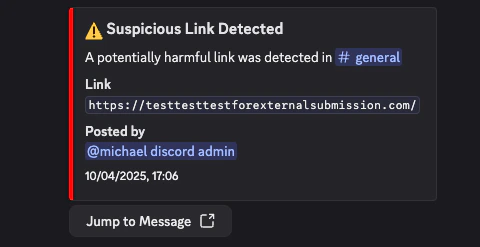
When a suspicious link is detected, ChainPatrol can be configured to:
* **React with 🚨** - Adds a warning reaction to the message
* **Delete the message** - Automatically removes the message
* **Notify moderators** - Sends an alert to your moderator channel
The response action is configured by your server administrator through the
ChainPatrol dashboard
#### Example
Here's what happens when a suspicious link is detected:
### Link Monitoring
ChainPatrol can monitor your Discord channels for suspicious links and automatically take action when they are detected. This feature helps protect your community from scams and malicious content.
#### Setup
To enable link monitoring in a channel:
1. Navigate to the channel you want to monitor
2. Run the `/setup linkmonitoring` command
3. Confirm the setup when prompted
Only server administrators or users with "Manage Server" permissions can
enable link monitoring
#### How it Works
Once enabled, ChainPatrol will:
1. Monitor all messages in the configured channel for URLs
2. Check each URL against ChainPatrol's comprehensive blocklist, which includes:
* Known scam websites
* Phishing attempts
* Malicious domains
* Other security threats reported to ChainPatrol
3. Take action based on your server's configuration when suspicious links are detected
The blocklist is continuously updated with new threats reported by the
ChainPatrol community and security researchers. You can [search through our
blocklist](https://app.chainpatrol.io/search) to see what threats we're
protecting against.
#### Response Actions
When a suspicious link is detected, ChainPatrol can be configured to:
* **React with 🚨** - Adds a warning reaction to the message
* **Delete the message** - Automatically removes the message
* **Notify moderators** - Sends an alert to your moderator channel
The response action is configured by your server administrator through the
ChainPatrol dashboard
#### Example
Here's what happens when a suspicious link is detected:
 ## Common Issues
 ### Custom Elevated Permissions
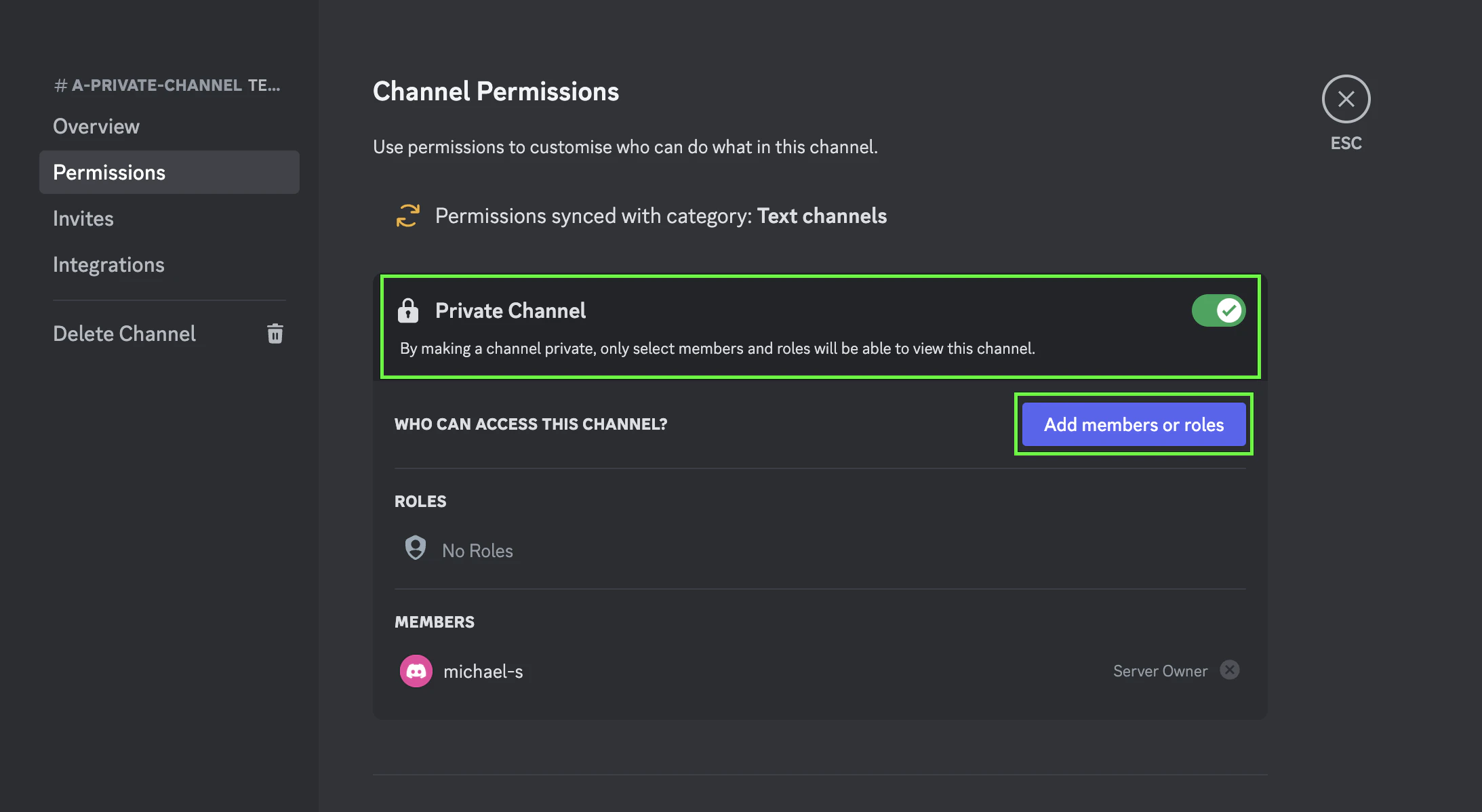
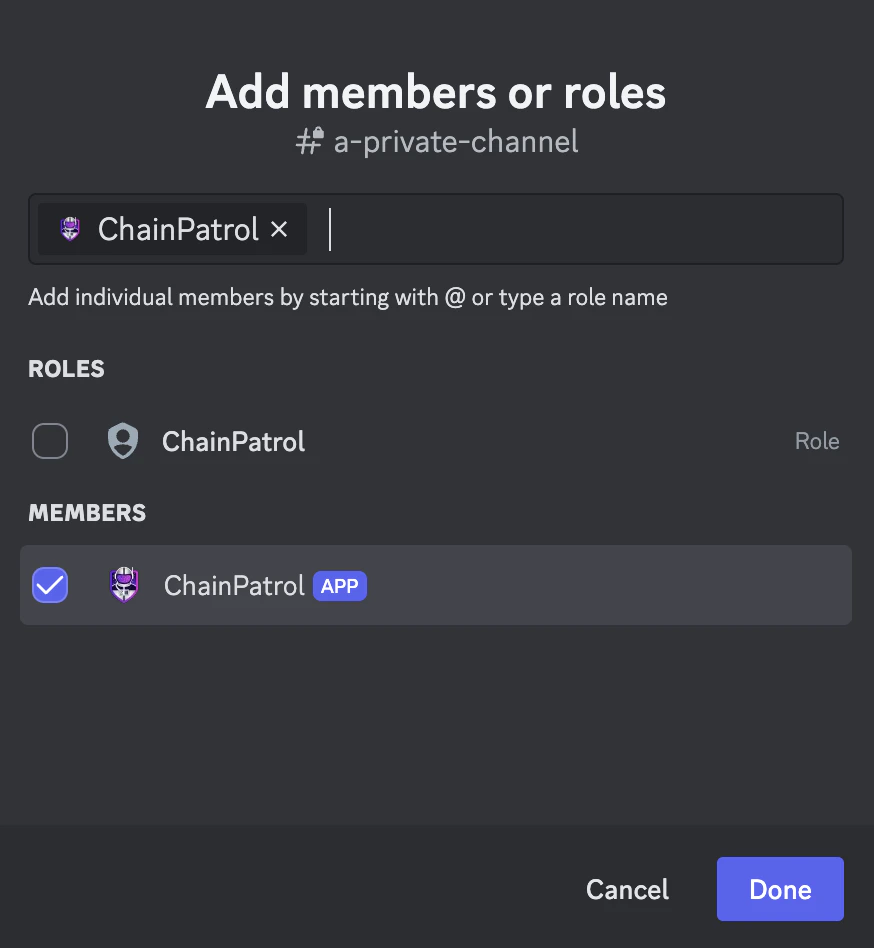
* Bot role may need elevated permission to interact with private channels
* If you are adding the bot to a channel that is not normally visible to `@everyone`, then you will need to
Slash commands not visible to Discord members
### Custom Elevated Permissions
* Bot role may need elevated permission to interact with private channels
* If you are adding the bot to a channel that is not normally visible to `@everyone`, then you will need to
Slash commands not visible to Discord members
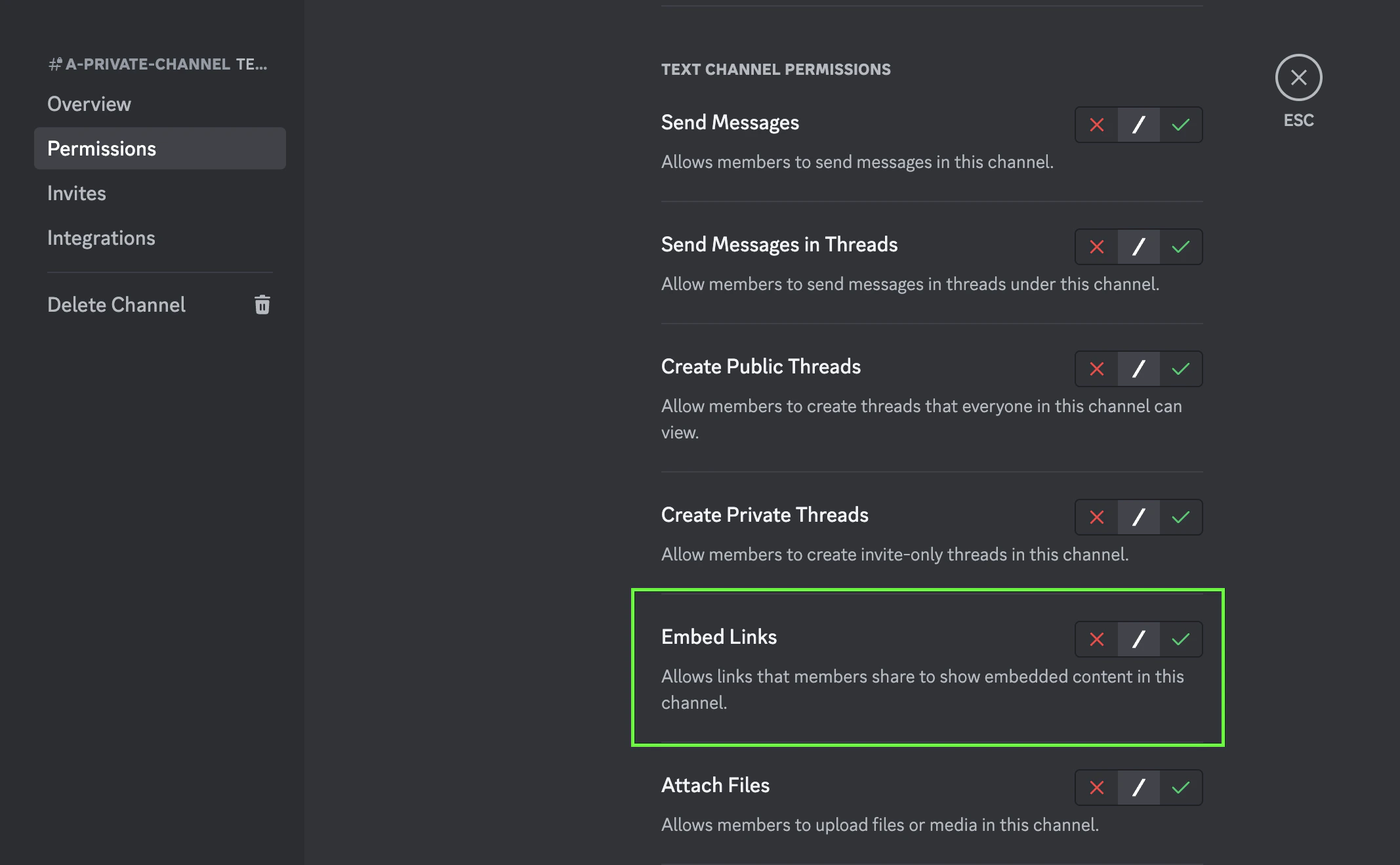
 * Embed links permissions are required for your reports feed
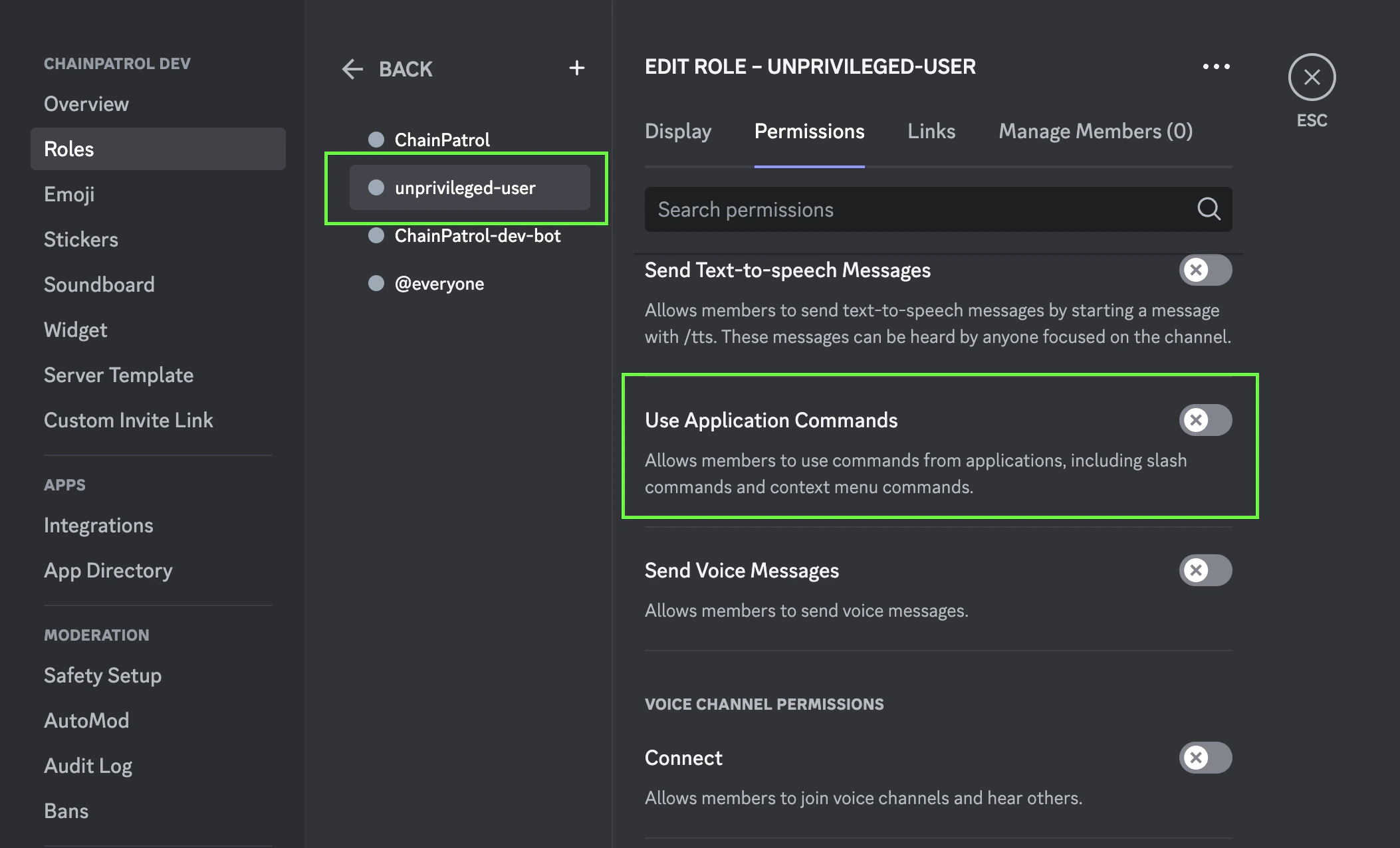
 * Make application commands available to users
* Server members will not be able to use the ChainPatrol bot commands if they do not have access to application commands
* Make application commands available to users
* Server members will not be able to use the ChainPatrol bot commands if they do not have access to application commands
 ## Debugging Tips
### View Server As Role
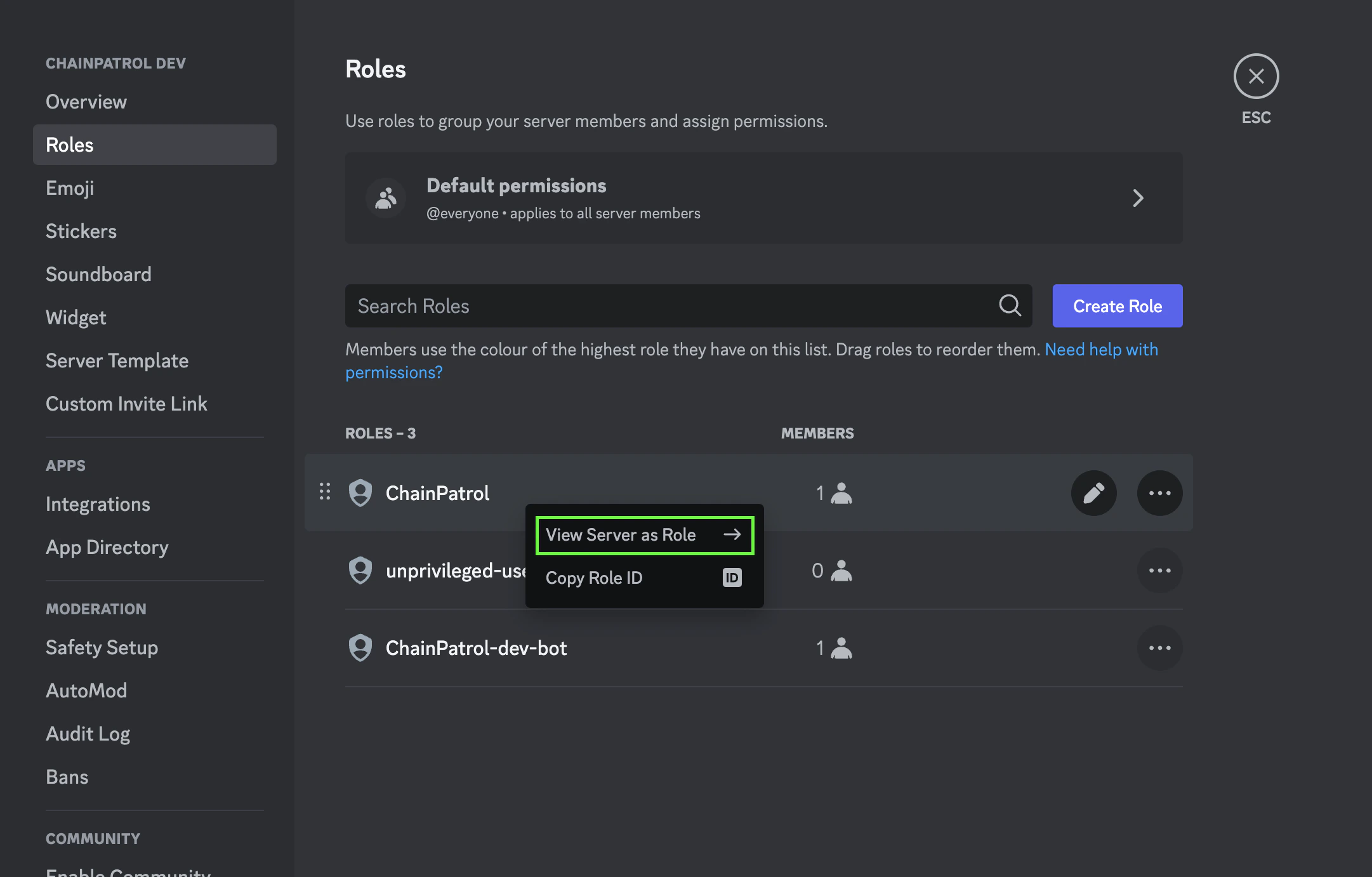
* You can right click the ChainPatrol role in server settings to see the server as the bot role
## Debugging Tips
### View Server As Role
* You can right click the ChainPatrol role in server settings to see the server as the bot role
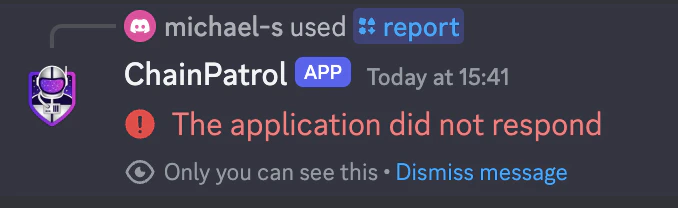
 Trying to access a feature in an inaccessible part of the server will lead to
an error. Make sure the bot's permissions can see and interact with what you
are debugging.
Check out [Discord's Role Management 101](https://support.discord.com/hc/en-us/articles/214836687-Role-Management-101) Article for additional help!
## Privacy
The bot does not collect any personal information. It only collects the URL and
the Discord ID for the user that submitted the report (in case a moderator needs
more information about why the URL is a scam). The bot does not store any information
about the server it is added to.
## Source Code
The source code for the bot is available on GitHub:
[chainpatrol/discord-bot](https://github.com/chainPatrol/discord-bot)
Trying to access a feature in an inaccessible part of the server will lead to
an error. Make sure the bot's permissions can see and interact with what you
are debugging.
Check out [Discord's Role Management 101](https://support.discord.com/hc/en-us/articles/214836687-Role-Management-101) Article for additional help!
## Privacy
The bot does not collect any personal information. It only collects the URL and
the Discord ID for the user that submitted the report (in case a moderator needs
more information about why the URL is a scam). The bot does not store any information
about the server it is added to.
## Source Code
The source code for the bot is available on GitHub:
[chainpatrol/discord-bot](https://github.com/chainPatrol/discord-bot)